Virtual machines
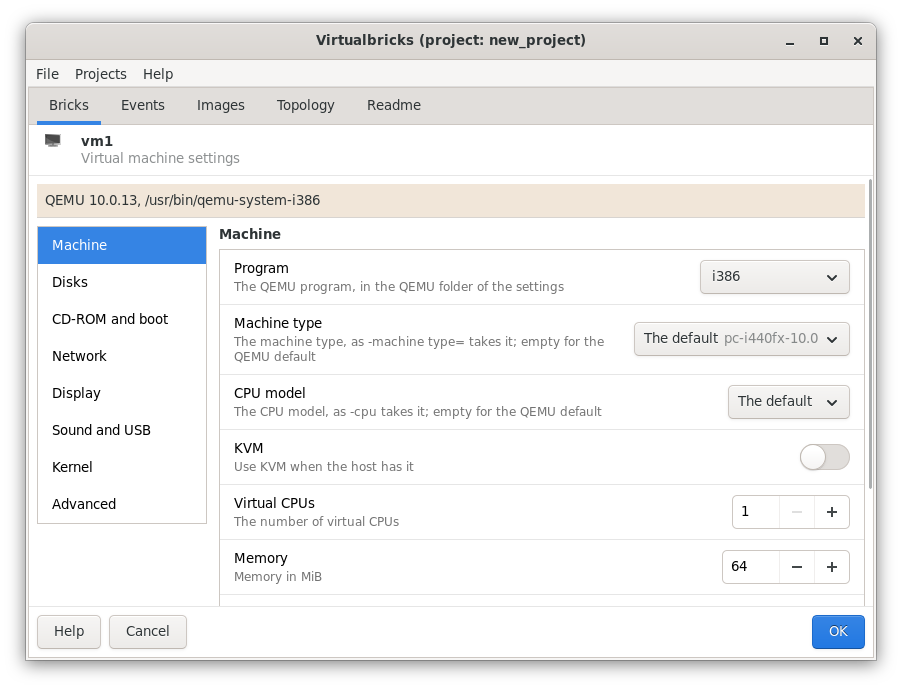
A virtual machine is a brick that QEMU runs. Its settings have a section for each part of it: Machine, the QEMU program, the type of machine, its processors and its memory; Disks; CD-ROM and boot; Network; Display; Sound and USB; Kernel, to boot a kernel of your own; and Advanced. The line at the top says which QEMU will run it.
Disks
Add Disk adds a disk on the first free device. Each disk chooses its image in a list of the images of the project, which says what each is and who uses it. The list also has Add an Existing Image…, New Empty Disk… and Manage Images…, which shows the Images tab.
How a disk uses its image
- Private copy
-
The default. The machine writes its changes to a file of its own in the folder of the project, made at its next start, as
vm1_hda.cow, and the image stays as it is. Several machines can share one image this way. - The image itself
- The machine writes to the image.
The line under a disk says what it does. The menu of a disk has Save as a New Image…, which keeps the changes of the machine as an image of their own; Merge into the image, which writes them into it, and lists first what else uses it; Start Over from the image, which throws the changes away; Show in Files and Remove Disk. Saving and merging run in the background, with their progress, and can be stopped.
Network cards
Add Card adds a network card after the others. The cards are in the order the machine sees them, the first one first. Each has a Model, a MAC address, and what it is Plugged into:
a switch of the lab;
The host only, on QEMU's user network: QEMU joins the machine to this computer, and through it to the networks this computer reaches, with no switch;
Other bricks plug into it: the card is a socket, and a wire can plug into it when the setting Plugs into machines of the project allows it;
Nothing.
The console of a machine
While the machine runs, Process › Open Control
Monitor, in its menu, opens the monitor of QEMU in a
terminal, the one of the Terminal setting.
There you type the commands of QEMU, as info network.
Stop, suspend, resume
Stop asks the system of the machine to shut down. Suspend, under Process, saves the state of the machine in its first disk and stops it; Resume starts it again from there. Reset is the reset button of the machine.
See also
Start, stop, configure, connect, rename and delete the bricks of a lab.
Add, make, share and find the disk images of a project.
A switch and a machine plugged into it, started.