Disk images
A disk image is a file that holds the disk of a virtual machine, as
debian.qcow2: the system it boots, or an empty
disk to install one on. The images are part of the project, by name, and
each disk of a machine chooses one of them. Several machines can share
an image, each on a private copy of its own; see Disks.
The states
- In use
-
A machine that uses the image runs, or starts. The tooltip of the state says which.
- Not in use
-
Disks use the image, but their machines are stopped.
- No disk
-
No disk of the project uses the image.
- File missing
- The file of the image isn't where the project says; the machines that use it can't start until you find it. See A missing file.
The Images tab
The Images tab has a row for each image: its
name; what qemu-img says of its file, its
format, the size of the disk that the machine sees and the space that
the file takes; which machines use it, on a private copy or the image
itself; and its state.
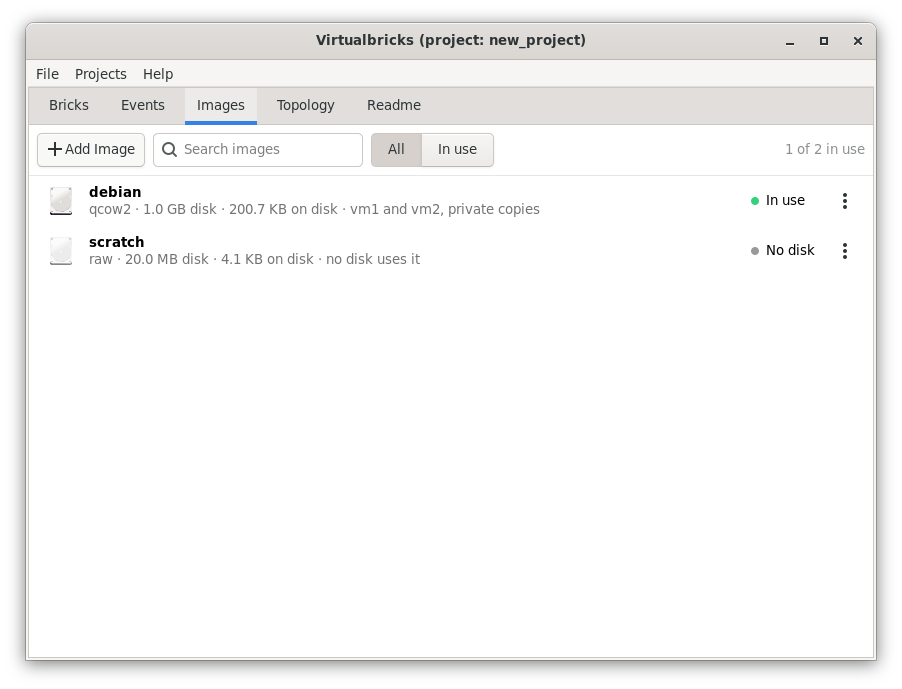
Above the list, Add Image adds an image, and the search field finds one by name: press Ctrl+F, or start typing in the list. All and In use switch between all the images and only those in use. The sizes are in KB, MB and GB of 1000 bytes.
Adding an image
Add Image offers two ways. The same two are in the list of images of each disk of a machine, which then uses the image added.
- Existing Image…
-
A file you have, as one you downloaded. Choose it:
qemu-imgreads it, and the dialog says what it is, or that it isn't a disk image. The Name starts from the name of the file. A file outside the workspace is copied to the shared images, unless you choose Use it where it is: the file you chose stays as it is, and the copy takes only the space of its data. A file above another, a backing file, is always used where it is. The Description starts from a file beside it with.mdafter its name, asdebian.qcow2.md, if there's one. - New Empty Disk…
-
A new file, of the Size you choose, 10 GB at first, and of the Format you choose: qcow2, which grows as the machine writes, or raw. It goes in the shared images, or in another Folder, with the name of the image and the extension of its format, as
scratch.raw.
The shared images
Each workspace has a folder of images that its projects share, shared_images. An image there can be used by several
projects, and by several machines of each, each machine on a private
copy of its own. The import of an archive copies its images there too,
and a project removed leaves them.
A file used where it is stays where it was: the project keeps its path. Keep it there, or the image becomes File missing.
The details of an image
Double-click a row, or select it and press Enter: the details of the image show in place of the list, as the settings of a brick. You can change its Name, which follows into the disks that use it, and its Description; OK saves them, and is greyed while the name can't be the image's, with the reason under it.
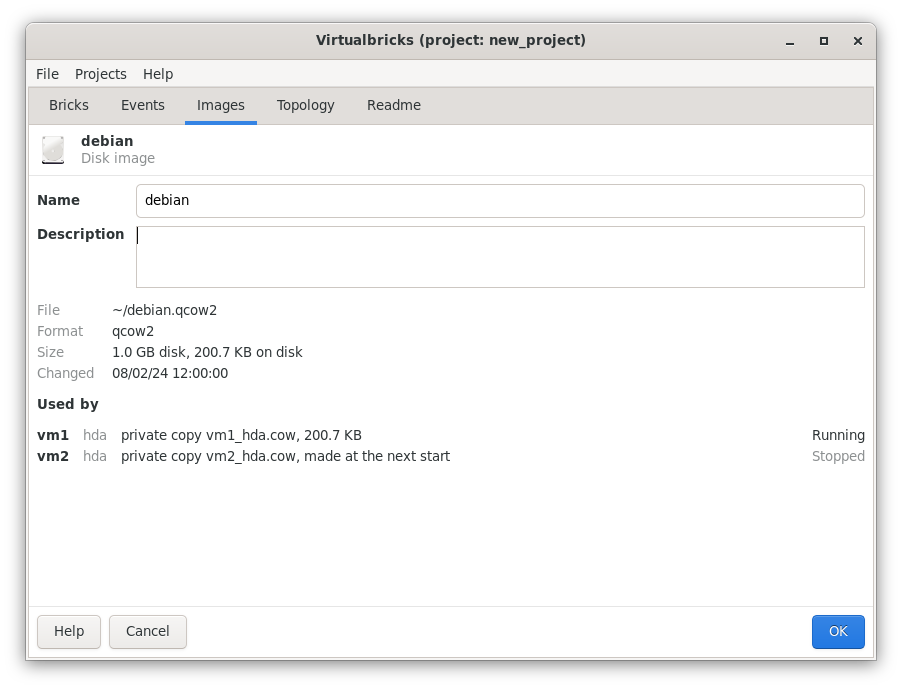
Under them, what qemu-img says of the file:
where it is, its format and the file it is above, if any, its sizes, its
snapshots and when it last changed. Then Used
by, a line for each disk: its machine, its device, as
hda, how it uses the image, a private copy and its size, or
the image itself, and whether its machine runs. Last, the other projects
of the workspace that use the same file, and under which name.
The menu of an image
The button at the end of the row, the right button of the mouse and the Menu key open the menu:
- Find the File…
-
Only for an image whose file is missing; see A missing file.
- Details…
-
As a double click, or Enter.
- Rename…
-
A new name, in the disks that use it too; F2 in the list.
- Show in Files
-
The folder of the file, in the file manager.
- Remove…
-
The image leaves the project; Delete in the list.
Removing an image
Remove… asks first, and says which disks will have no image: their machines start without them until you choose another. The private copies stay in the folder of the project, with the changes of their machines.
The file stays too, unless it is in the shared images and no other project uses it: then the dialog offers to move it to the trash, with the space it takes, or, on a computer without a trash, to delete it for good. A file that another project uses always stays, and the dialog says which project.
A missing file
An image whose file is gone, moved, or left unset at the import of an archive, is File missing, and its row says where the file was. Its menu starts with Find the File…: choose the file where it is now. When the shared images have a file of the same name, the dialog offers it first. The private copies of its disks are pointed at the new file before the image, so that they keep their changes: choose the same disk, or a copy of it, since they hold changes to it.
From the console
The image commands of the console do the
same, but for the copy and the new empty disk:
image add debian ~/images/debian.qcow2 description="Debian 13"
image list
image show debian
image rename debian debian13
image delete debian13
image add uses the file where it is, and
image delete leaves the file and the private
copies. Every command is in virtualbricks(1).
In the windows of another computer (see Another computer), the files are those of the lab machine: you type the path of an existing image, with the completion of its folders, and it is used where it is; Show in Files is greyed.
See also
The DTN2hops testbed, from its archive and its disk image, downloaded apart.
The disks, network cards and consoles of a virtual machine.