Bricks
The Bricks tab has a row for each brick of
the project: its icon, grey while it is stopped; its name; its kind and
what matters about it, as Wire · sw1 ↔︎ sw2; its
state; a button that starts or stops it; and the button of its menu.
The states
- Running, Stopped
-
Its program runs, or not.
- Starting
-
Its program runs once the bricks it plugs into run, and a virtual machine has its disks ready. Meanwhile it counts as running: you can't rename it or delete it, nor quit Virtualbricks.
- Not connected
-
A plug of the brick goes nowhere, as a wire with a free end: it can't start until you connect it.
- Not configured
-
A setting that it needs is missing, as the host of a tunnel client: it can't start until you set it.
- Error
-
A switch wrapper whose folder has no switch to plug into, though the
folder is there: it has no socket
ctl, or the one that a killed switch leaves. The tooltip of the state says what is wrong, and so does the Logs window. It runs again once a switch listens there.
Above the list
New Brick adds a brick; see The kinds of brick. The search field finds a brick by name or by kind: press Ctrl+F, or start typing in the list. All and Running switch between all the bricks and only those that run, which then show the number of their process. Start All starts every brick that can start, and Stop All stops them.
Starting and stopping
The button of a row starts the brick, or stops it. Starting a brick starts first the bricks it plugs into. Stopping a virtual machine asks its system to shut down. Stopping a brick that is starting calls its start off: its program doesn't run, and the bricks it plugs into start all the same.
The settings of a brick
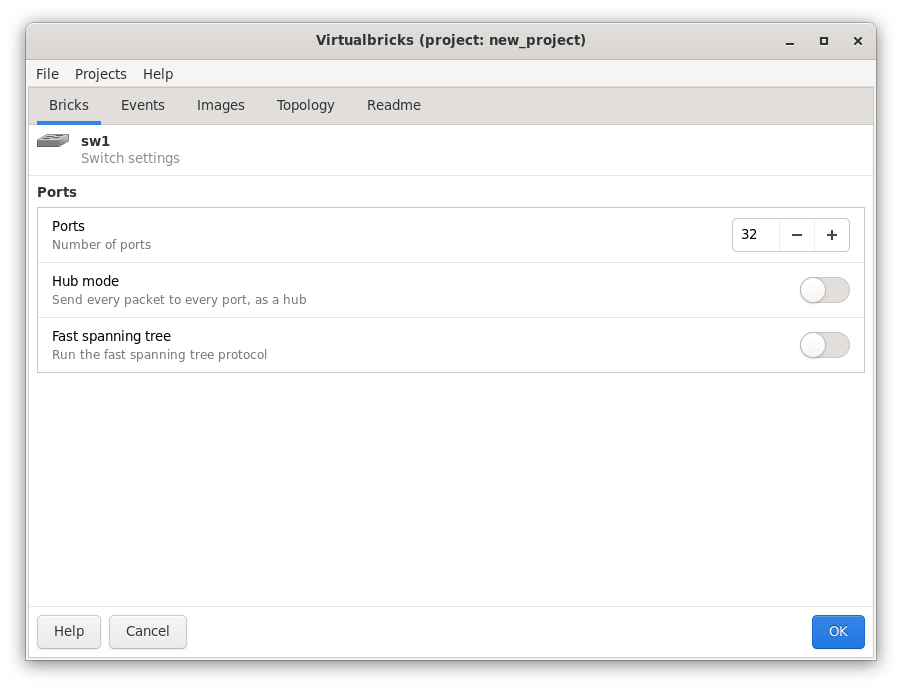
Double-click a row, or select it and press Enter: the settings of the brick show in place of the list, under a line that names it. OK applies them, and is greyed while a setting is wrong, with the first problem beside it. Cancel and Esc go back to the list without a change. While the brick runs, a bar over its settings says which of them change at once.
The menu of a brick
The button at the end of the row, the right button of the mouse, the Menu key and the picture of the Topology tab open the same menu:
- Start, Stop
-
As the button of the row.
- Configure…
-
The settings of the brick; Enter in the list.
- Rename…, Delete…
-
Greyed while the brick runs or starts; F2 and Delete in the list. Before a brick goes, the dialog says what goes with it: the bricks plugged into it are unplugged, the events no longer start or stop it, and the private copies of a machine go to the trash.
- Duplicate
-
A copy of the brick, with its links, named after it with the next free number. The network cards of a machine get new MAC addresses.
- Connect To
-
The bricks that this one can plug into. Dragging the row of a brick onto the row of another does the same: when one of the two can plug into the other, that row is framed, and they connect when you let go.
- When It Starts, When It Stops
-
The event to start each time the brick starts, or each time it stops; No Event for none. See When a brick starts or stops.
- Resume
-
For a virtual machine, start it from the state that Suspend saved in its first disk. A machine that runs goes back to that state.
- Process
-
While the brick runs, what to do with its program; see The process of a brick.
The process of a brick
While a brick runs, its menu has Process, named after the number of its process, as Process 4242. Its items act on the program of this brick alone, never on the bricks it plugs into. A brick that is starting has no process yet, and a switch wrapper has none of its own: its switch is another program's.
- Open Control Monitor
-
Opens the console of the program in a terminal, the one of the Terminal setting (see Settings): the monitor of QEMU for a virtual machine, the console of
vde_switch,vde_routerorvde-netemufor a switch, a router or a netemu. There you type the commands of the program, asinfo networkin QEMU orport/printin a switch;helplists them. Closing the terminal leaves the program running, butquitin QEMU andshutdownin a switch end it, and the brick stops. A wire, a tunnel, a tap and a capture interface have no console: their Process lacks this item.In the windows of another computer (see Another computer), the terminal opens on your desktop. When your desktop lacks the program it needs, the item is greyed and says which, as Open Control Monitor (needs unixterm of vde2).
- Pause, Continue
-
Pause freezes the program where it is, with the signal SIGSTOP, and Continue lets it go on, with SIGCONT. A paused switch passes no traffic, and a paused machine does nothing at all. Nothing shows that a brick is paused: its state stays Running. Stop may wait until it continues; Kill doesn't.
- Suspend
-
For a virtual machine: saves the state of the machine, its memory and its devices, in its first disk, then asks its system to shut down, as Stop. Resume, in the menu, starts it again from that state. The state goes into the private copy of the disk, which takes any image, or into the image itself, which must then be qcow2: on a raw one the Logs window says that suspend isn't supported.
- Reset
-
For a virtual machine: its reset button. The system of the machine starts over at once, without shutting down, and what it didn't save is lost. The process stays the same.
- Restart
-
Stops the brick, as Stop, and starts it again, in a new process: the settings that wait for a start take effect, and its events run, When It Stops then When It Starts. A brick that hasn't stopped after two seconds is killed, as Kill: a virtual machine has those two seconds to shut its system down.
- Terminate
-
For a virtual machine whose system doesn't answer Stop: QEMU closes the disks and ends, with the signal SIGTERM, and the system of the machine goes off as when the power is cut. The other bricks have no need of it, since their Stop already sends SIGTERM. Greyed in the windows of another computer.
- Kill
-
The program ends at once, with the signal SIGKILL, which it can't refuse, even paused. It can't clean up either: a switch leaves its socket behind, and QEMU doesn't close the disks of a machine. The last resort, when Stop, or Terminate for a machine, doesn't stop it.
See also
Start a lab in order, start bricks along with another, run commands.
What each brick is for, and the program that runs it.
See how the bricks connect, arrange them, and export the picture.
The disks, network cards and consoles of a virtual machine.