Events
An event waits a number of seconds, then runs its actions. With events, a lab starts in order, the machines after the router they need; a brick starts or stops others when it starts or stops; and a command runs at the right time, as one that gives a tap its address.
The events are part of the project, and go into its archives. None of them starts when the project opens: start them, or let a brick start them.
The states
- Ready
-
The event has actions, and doesn't wait: it can start.
- Waiting
-
It waits, and its row counts down the seconds left, as Waiting · 12 s. Then it runs its actions, and is Ready again.
- Not configured
- It has no action, and can't start until you add one; the tooltip of the state says so.
Making an event
In the Events tab, click New Event.
Give it a Name, or keep the one it suggests, and the seconds to Wait, then click Create. Its settings show in place of the list.
Click Add Action, then choose what the action does, as Start a brick, and which brick.
Add the other actions the same way, then click OK.
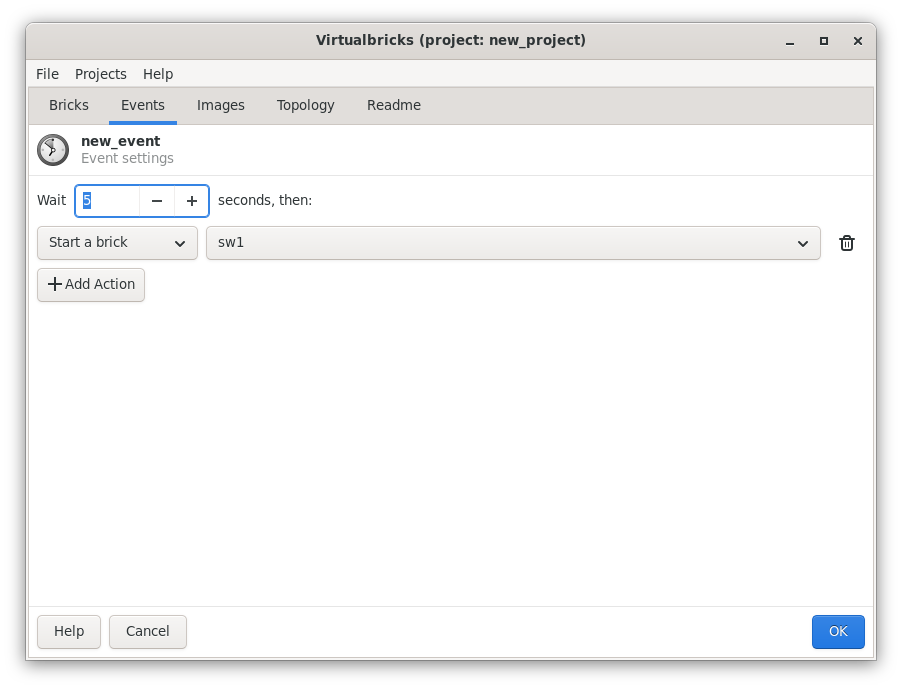
To change an event, double-click its row, or select it and press Enter. In its settings, the number after Wait is the seconds, 0 to run the actions at once, and the button beside an action removes it. An action whose brick or event is no longer in the project names it with (missing).
The actions
The actions run all at once, after the wait: an action doesn't wait for the one before. When an action must come after another, put it in a second event that waits longer; see Starting a lab in order.
- Start a brick
-
Starts the brick, as its start button does: the bricks it plugs into start first. A brick that runs is left as it is.
- Stop a brick
-
Stops the brick, as its stop button does: a virtual machine is asked to shut its system down.
- Start an event
-
Starts an event, which then waits its own seconds before it runs its actions. An event that waits already goes on waiting, and doesn't start over. An event that starts itself runs its actions again after each wait, until you stop it: one that waits 60 seconds runs them every minute.
- Stop an event
-
Stops an event while it waits: its actions don't run.
- Console command
-
A command of the console of Virtualbricks, as
brick set vm1 memory=512; see The console and scripts. While the command is wrong, a warning sign shows in its field, and its tooltip says why. - Shell command
-
A command of this computer, which
shruns, aslogger lab started. It runs in the folder where Virtualbricks was started, with its environment, so give whole paths. It has no terminal: it can't ask for anything, and what it prints is lost. The Logs window says how it ended, as Process ended with exit code 0.
In the windows of another computer (see Another computer), the events run on the lab machine, and so do their shell commands.
The Events tab
The Events tab has a row for each event: its
name; what it does, in words; its state; a button that starts or stops
it; and the button of its menu. When bricks start the event, the row
says which, as After 30 s, starts vm2 and vm3 · when vm1 starts.
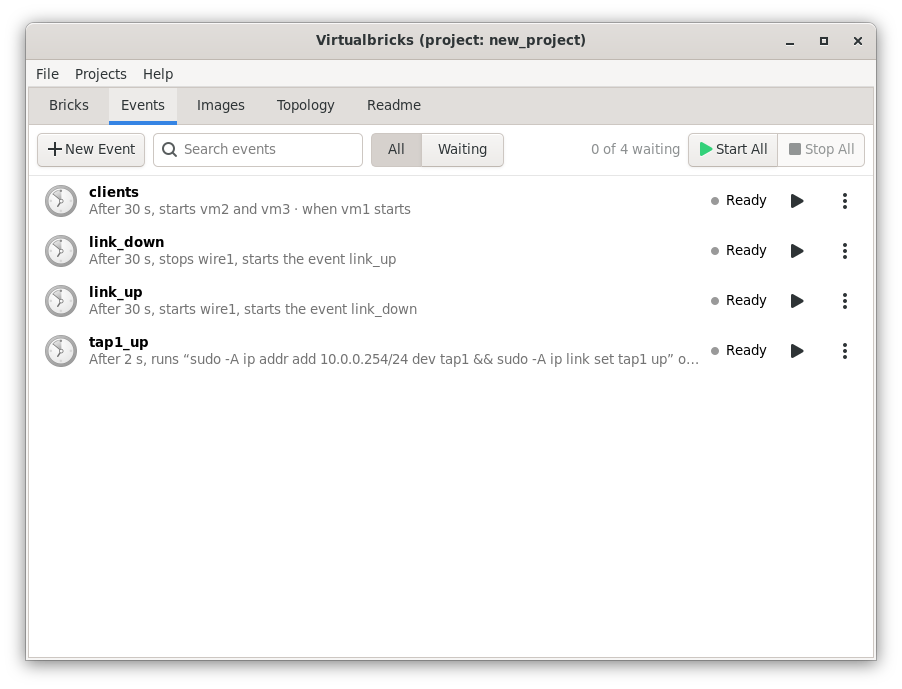
Above the list, New Event makes an event, and the search field finds one by name. All and Waiting switch between all the events and only those that wait. Start All starts every event that is Ready, and Stop All stops those that wait.
The row of an event and its menu have:
- Start, Stop
-
Start the event: it waits, then runs its actions. Stop an event that waits, before it runs them.
- Run Now
-
Run the actions now, without waiting. An event that waits goes on waiting.
- Configure…, Rename…, Duplicate, Delete…
-
As for a brick. A rename follows the event into the actions and the bricks that name it. Before an event goes, the dialog says what goes with it: the actions of the other events that start or stop it, and the bricks that will no longer run it.
When a brick starts or stops
A brick can start an event each time it starts, and another each time it stops:
Make the event; see Making an event.
Open the menu of the brick, in the Bricks tab or in the picture of the Topology tab.
In When It Starts, or When It Stops, choose the event. No Event takes it away.
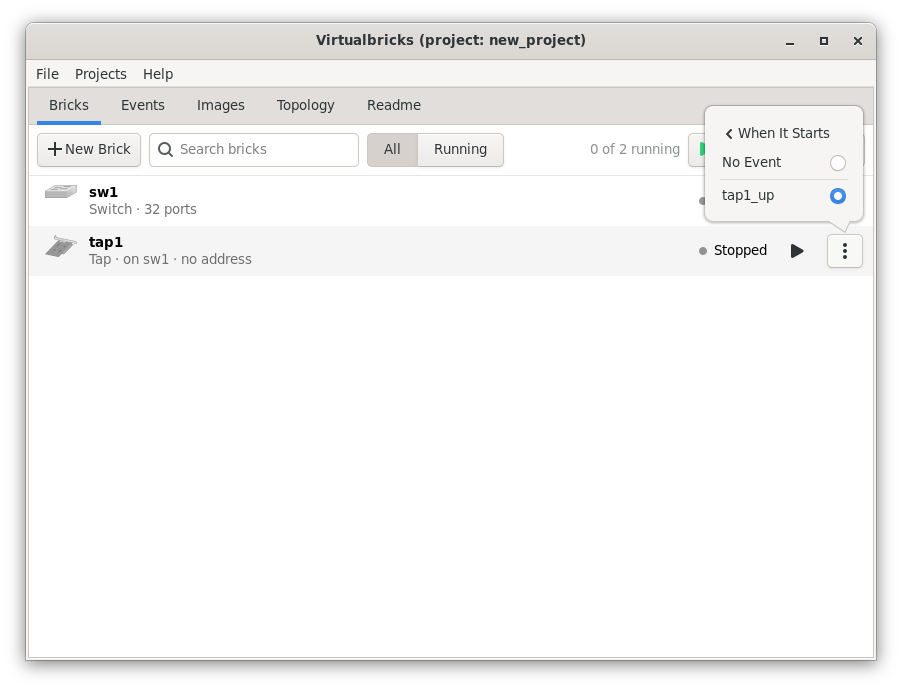
A brick has one event for its start and one for its stop, and an event can be that of many bricks. The row of the event, in the Events tab, says which bricks start it.
- When It Starts
-
The event starts as soon as the program of the brick runs, not once the brick is ready: the system of a virtual machine is still booting, and a tap may not have its interface yet. Give the event the seconds that the brick needs. A brick that runs already, and a start that fails or that a stop calls off, don't start it.
- When It Stops
-
The event starts each time the program of the brick ends: with Stop, Kill, or by itself, as when the system of a virtual machine shuts down, or when the program fails.
Restart, in the menu of a brick that runs, starts the event of its stop, then that of its start. A brick that starts because another plugs into it starts its own event too. A switch wrapper starts them when the switch of its folder comes and goes.
An event without actions, or one that is no longer in the project, isn't started, and the Logs window says so; the menu names a missing event with (missing).
Starting a lab in order
Starting a machine starts first the switches it plugs into, but not
the machines it needs: a router, or a server that gives the addresses,
must have booted before the other machines ask for it. Say that vm1 is the router, and vm2
and vm3 need it:
Make the event
clients, which waits 30 seconds, with the actions Start a brickvm2and Start a brickvm3.In the menu of
vm1, chooseclientsin When It Starts.Start
vm1: the others start 30 seconds later. So they do each time the router starts, from its button, from Start All or from an event.
Without When It Starts, a second event does
it: lab, which waits 0 seconds, with the
actions Start a brick vm1 and Start an event clients. Then start lab, not
vm1.
The address of a tap
Virtualbricks doesn't give a tap its address yet: its settings say
so. An event of its start can, with the command ip. The interface of this computer takes the name of
the tap, as tap1:
Make the event
tap1_up, which waits 2 seconds, with the action Shell commandsudo -A ip addr add 10.0.0.254/24 dev tap1 && sudo -A ip link set tap1 up.In the menu of
tap1, choosetap1_upin When It Starts.
The command runs as root, through sudo,
which can't ask for your password on a terminal, as for the tap itself:
-A asks in a window, with a helper; see A tap or a capture interface doesn't
start. If sudo asks for your password to
start the tap, the interface is there only once you typed it: wait more
seconds.
A link that goes down and up
Stopping the wire between two switches cuts the link between them, and starting it again mends it. Two events that start each other cut it every 30 seconds:
Make the events
link_downandlink_up, each of them waiting 30 seconds, and click OK in their settings without adding actions.Give
link_downthe actions Stop a brickwire1and Start an eventlink_up.Give
link_upthe actions Start a brickwire1and Start an eventlink_down.Start
link_down. Stop All, above the list of events, ends it.
From the console
The event commands of the console do the
same, and brick set chooses the event of a
brick, as on_start and on_stop:
event new clients
event set clients delay=30
event action add clients start vm2
event action add clients start vm3
brick set vm1 on_start=clients
event show clients
A command of the console or of the shell goes in quotes, as event action add lab shell "logger lab started".
event show numbers the actions, which event action remove and event action move take, and brick set vm1 on_start=, with nothing after
=, takes the event away. A file of commands that ends with
event start lab, run with virtualbricks --run file, starts the lab as
Virtualbricks starts. Every command is in virtualbricks(1).
When an event goes wrong
An action that fails doesn't stop the others: a brick that can't
start, a console command with an error, a brick or an event that is no
longer in the project. The Logs window says
which one failed and why, as Event lab, action 1, start vm1: …, and source:lab in its filter keeps the messages of the
event lab; see The
filter.
A brick or an event renamed is renamed in the actions that start or stop it, but not in the console and shell commands, which keep the old name: change them by hand.
See also
Start, stop, configure, connect, rename and delete the bricks of a lab.
Type commands, run a file of them, or send them from another terminal.