The first post of this series was a map of what changed in the develop branch. This one is about what you see: the tabs of the main window, one by one, the messages window and the Settings window.
The screenshots show a small lab: two sites joined by a slow link, a Netemu with 20 ms of delay and 1% of the packets lost, two routers, a client and a tap that gives the host a way in.
The Bricks tab
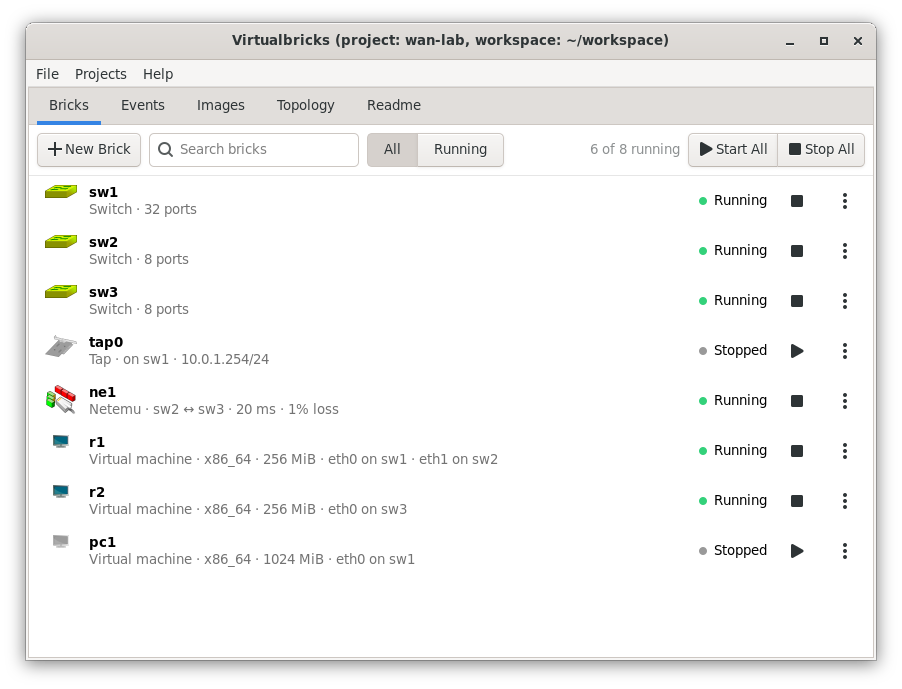
The Bricks tab: six bricks of eight run. The tap couldn't start, and its icon is grey.
The Bricks tab of 2.1 was a list of five columns: an icon, the state, the type, the name, fourth, and the parameters, the text that the console prints. A double click started or stopped a brick, also a running virtual machine, without asking; everything else was in the menu of the right button, which nothing pointed to. Now:
- A row for each brick. Its icon, grey when the brick is stopped; its name; its kind in words and what matters about it, as Netemu · sw2 ↔ sw3 · 20 ms · 1% loss; its state; then Start or Stop, and its menu.
- States in words. Running, with a green dot, or Stopped, with a grey one. A brick that can't start says why, with a warning sign: a wire with a free end is Not connected, and its Start button tells you to connect it first; a tunnel client without a host is Not configured.
- A row above the list. New Brick; the search, which finds a brick by name or by kind, with Ctrl+F or by typing in the list; the switch between all the bricks and the running ones; how many run; Start All and Stop All. Start All starts the bricks that can start and leaves the others, where it used to fail on each of them.
- The settings in the tab. A double click or Enter shows the settings of a brick in place of the list, under a line that names the brick and its kind. The menus and the other tabs stay where they are; Cancel, OK or Escape go back to the list.
- One menu. The button at the end of the row, the right button and the Topology tab open the same menu: Start or Stop, Configure…, Rename…, Duplicate, Connect To, the events to run when the brick starts and when it stops, Resume for a virtual machine, and Delete…. It has its keys: Enter, F2 and Delete. Rename… and Delete… wait until the brick stops: while it runs they are greyed, and their keys do nothing.
- Connecting. Connect To, in the menu, lists the bricks that this one can be plugged into. Dropping a brick on another still connects them.
The Running tab is a menu now
Virtualbricks 2.1 had a tab of its own for the bricks that run, with a menu for their processes. Its Stop paused the process, which wasn't the Stop of the Bricks tab, and its Restart of a virtual machine sent an ACPI reset.
The Running tab is gone, and its menu came to the Bricks tab:
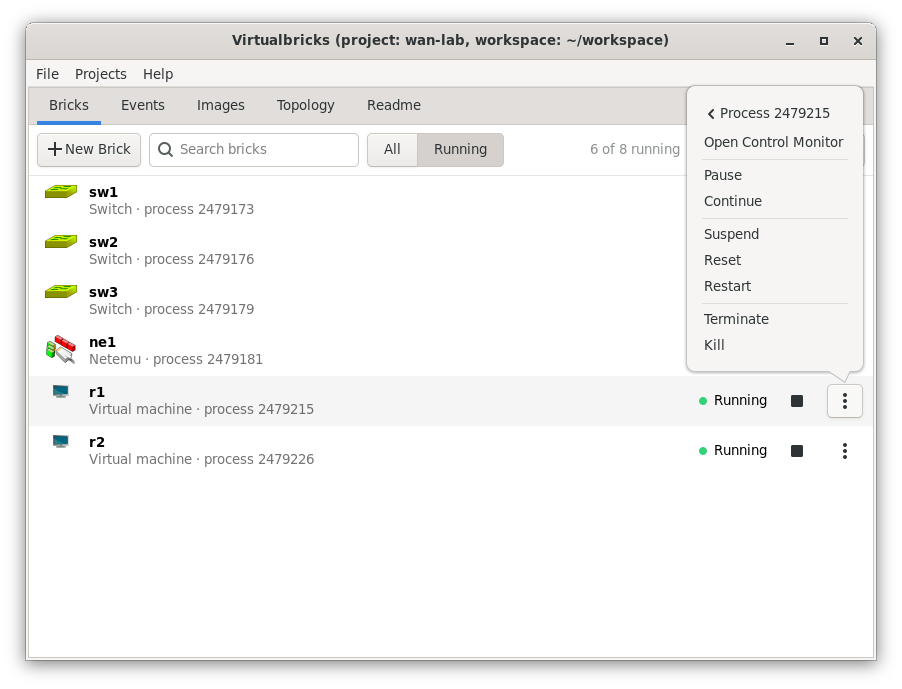
Running shows the bricks that run, with their process. The menu of a running brick has a Process item, which slides to what the Running tab did.
- Running, the switch above the list, shows only the bricks that run, with the number of their process in place of the summary. With All, the number is in the tooltip of the state.
- Process, in the menu of a running brick, slides to the actions on its process: Open Control Monitor; Pause and Continue, which stop and resume the process; for a virtual machine, Suspend, which saves its state in its disk, and Reset, its reset button; Restart, which stops the brick and starts it again, a virtual machine too; Terminate and Kill.
- Send ACPI powerdown is gone: Stop already does it.
Rename and Delete
In 2.1, Delete asked "Do you really want to delete sw2 (Switch)?", with No and Yes, and refused a running brick only after the Yes. A deleted brick stayed in the actions of the events that started it, and a deleted event in the bricks that ran it when they started.
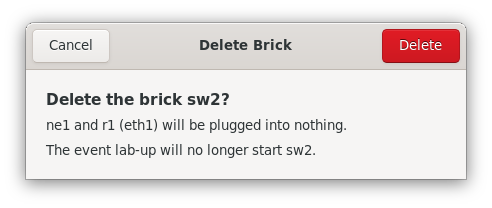
Before you delete sw2, the dialog says what goes with it.
- Delete… asks with Cancel and a red Delete, and says what changes: for a brick, the bricks plugged into it and the events that will no longer start or stop it; for an event, the bricks that will no longer run it when they start or stop. Then it does what it says: the plugs are unplugged, the actions leave the events, and the bricks forget the event. A waiting event stops.
- The private copies of a machine go to the trash with it, and the dialog says so: a new machine with the same name would start from them.
- Rename… opens on the name, selected, so typing replaces it. The line under the field says why a name can't be used, as "sw1 is the name of a brick", or what it becomes when its spaces turn into underscores, and Rename waits for a name that can be used. The same dialog renames an event and an image.
The Images tab
In 2.1, four places managed the disk images: the image library window, the other items of the Disk images menu, and three buttons in the settings of every machine. The library couldn't add an image, and removed one at once, even an image that disks used. They are all replaced by a tab, beside the Bricks and the Events, in the same shape:
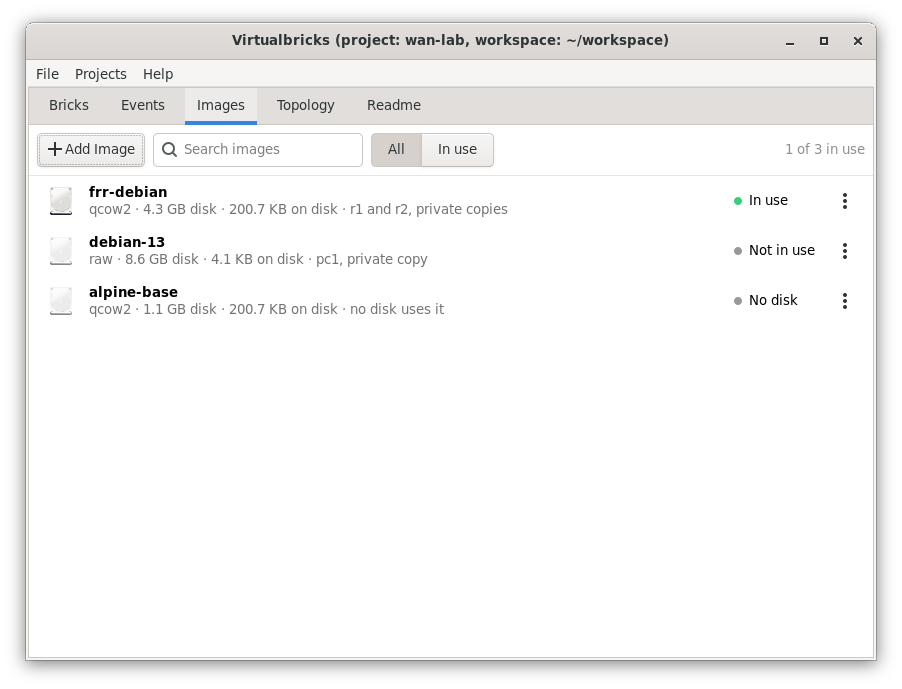
A row for each image: what it is and who uses it.
- A row for each image. Its format, the size of the disk the machine sees, the space the file takes, and which disks use it and how: on a private copy, or the image itself. Its state is In use while a running machine reads it, Not in use, No disk when no disk uses it, or File missing. The facts come from qemu-img info, read in the background, so the list fills in as each file is read.
- Add Image adds an Existing Image…, read with qemu-img info as soon as you choose it and copied to the shared images of the workspace unless you say otherwise, or a New Empty Disk…, qcow2 or raw, which is added to the project at once. In 2.1, a new image had to be added again, from its file.
- The menu of an image has Details…, Rename…, Show in Files and Remove…. Remove says which disks lose their image, and offers to move the file to the trash only when it is in the shared images and no other project uses it.
- Find the File… comes first in the menu of an image whose file is missing. It points the private copies at the new file before the path changes. In 2.1, changing the path of an image made the next start of each machine put its private copy aside and begin from an empty one.
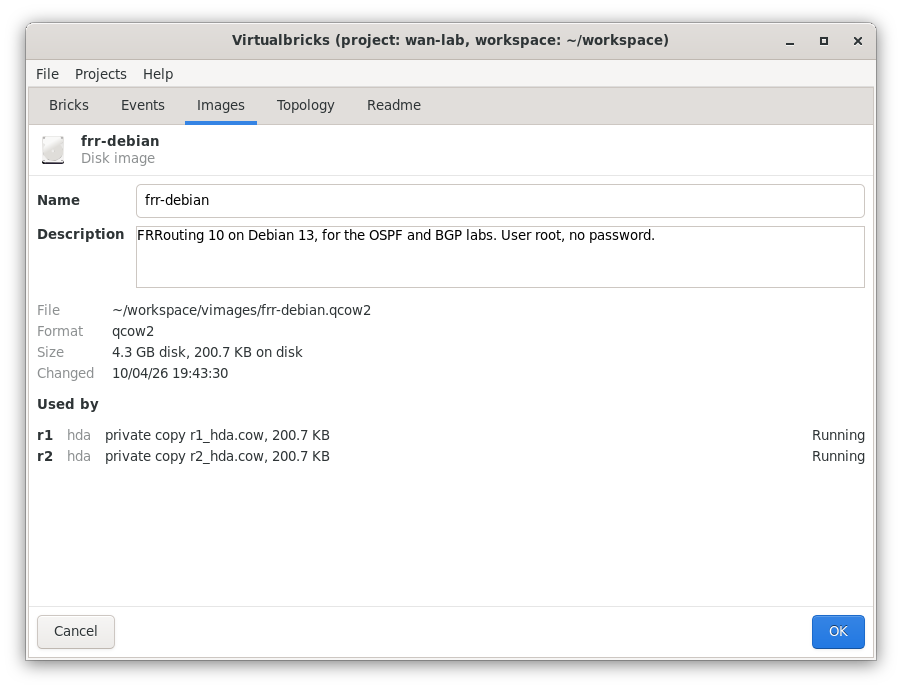
The details of an image, in the tab: what qemu-img says of it, and each disk that uses it. The picture was taken before the folder of the shared images was renamed: its paths say vimages, now shared_images.
The details show in the tab, as the settings of a brick do: the name and the description, which you can change, then the file, its format and backing file, the sizes, the snapshots, when it changed, each disk that uses the image with the size of its private copy, and the other projects that use the same file.
The disks of a machine
The Drives tab of a virtual machine had seven rows, from hda to mtdblock, each a list of names and a Private COW check. Now the Disks section shows the disks that the machine has, and Add Disk adds one on a free device:
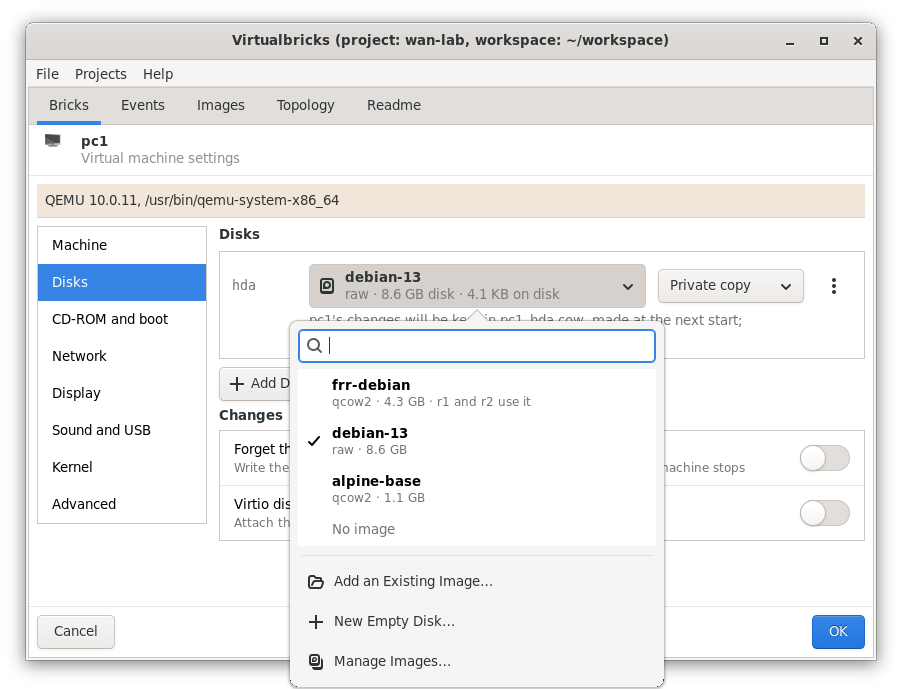
Each disk has an image picker, with the facts of each image, and a mode.
- The picker lists the images of the project, with what each is and who uses it, then Add an Existing Image…, New Empty Disk… and Manage Images…, which shows the Images tab.
- The mode is Private copy, the default, or The image itself. A line under the disk says what it does: "pc1's changes will be kept in pc1_hda.cow, made at the next start; debian-13 stays as it is."
- The menu of a disk has Save as a New Image…, then Merge into and Start Over from its image, Show in Files and Remove Disk. Merge lists everything else that uses the image, here and in the other projects, and offers to save a new image instead. Save and Merge run in the background, with their progress, and can be stopped.
The Topology tab
In 2.1, the Topology tab was a PNG that Graphviz drew at one size, pinned to its top left corner: no zoom, white in the dark theme, every brick in colour, running or not. Export as Image copied that PNG, so lab.svg was a PNG file.
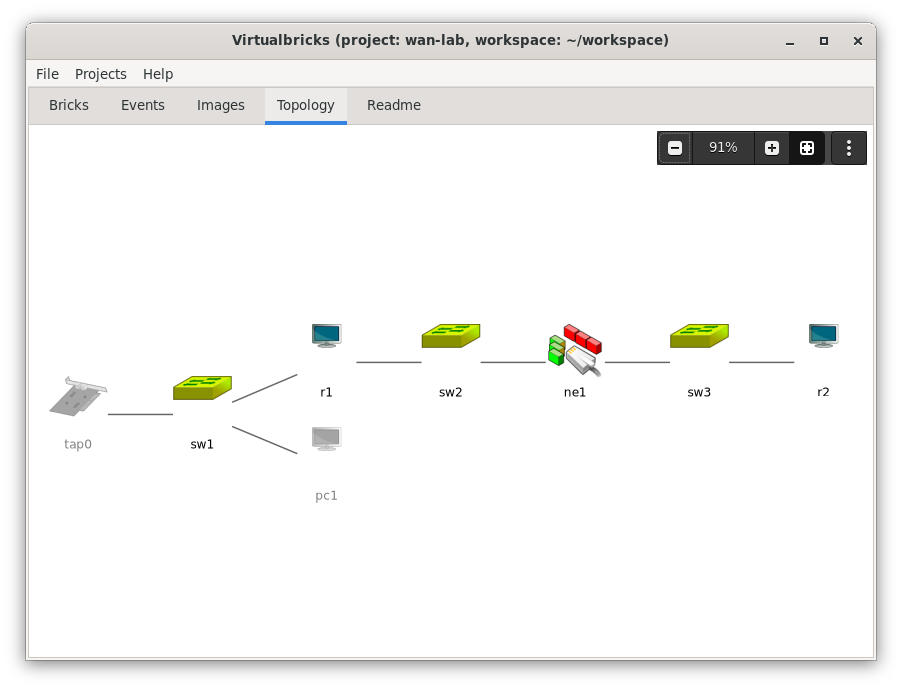
The picture takes the whole tab, and the zoom floats over it. Stopped bricks are grey, as in the Bricks tab.
Now Graphviz only places the bricks, and Virtualbricks draws them with cairo:
- The zoom. A dark bar floats over the top right corner: zoom out, the zoom level, zoom in, fit all, and a menu. The zoom goes through fixed levels from 10% to 400%, and a click on the level goes back to 100%. The tab opens fitted, and the picture fits again when the tab changes size or the lab changes, until you zoom. Fitting never goes above 100%, so a small lab keeps its size, in the middle of the tab.
- Mouse and keys. Ctrl and the wheel, or a pinch on a touchpad, zoom around the pointer, as a map does. Dragging the background moves the picture. Ctrl++, Ctrl+−, Ctrl+0 for 100%, and F for fit all.
- The bricks. A stopped brick is grey. The brick under the pointer lights up, with its name, its type and its state in a tooltip. The right button opens the menu of the Bricks tab, and a double click opens its settings.
- The menu of the bar has the direction of the layout, left to right or top to bottom, and Export as Image…: a PNG, an SVG or a PDF, at 100% and on white, whatever the zoom and the theme.
- The dark theme. The picture takes the colours of the theme:
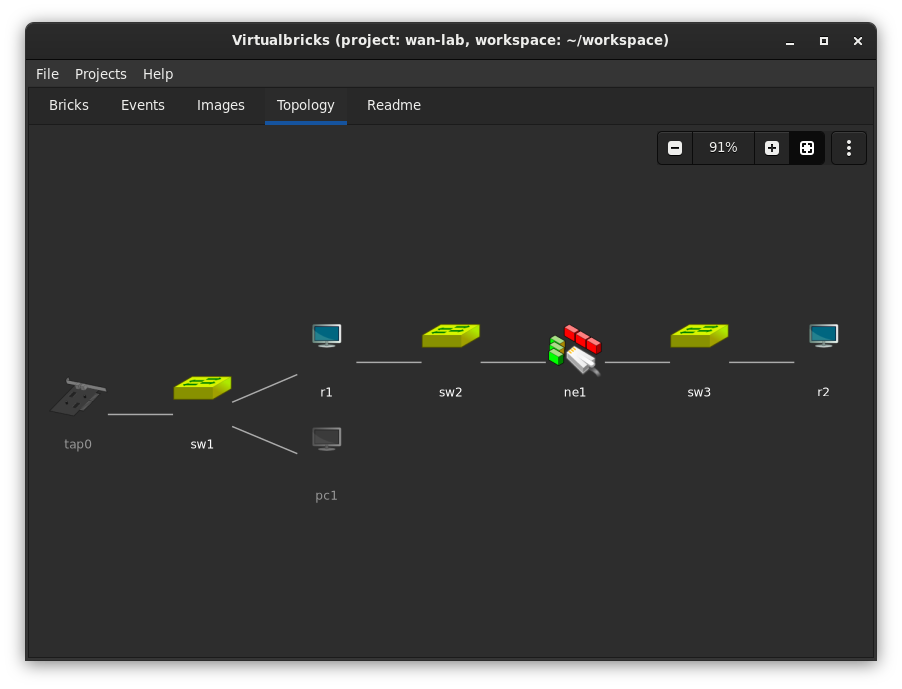
The same lab, with the dark theme of Adwaita.
The Readme tab
The README of a project is now Markdown, and its file is README.md. The README of an older project, of 2.1 or of an earlier snapshot of 3.0, becomes README.md when the project opens, when its archive is imported and when the migration copies it; until then the Projects window and the archives read either.
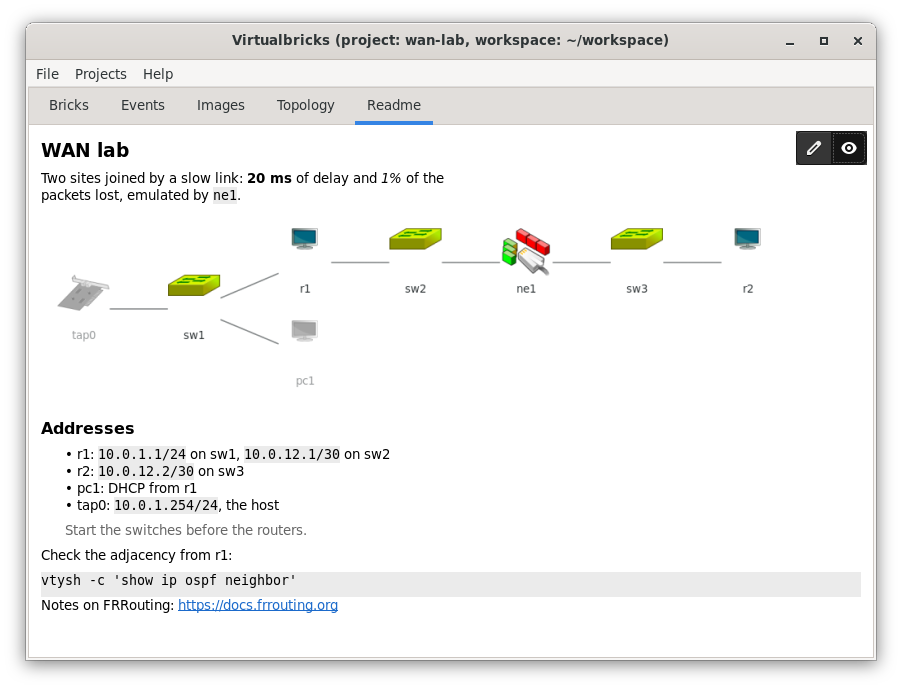
The README rendered, with a picture of the lab: the Topology tab exported it to the folder of the project.
- The preview first. The tab opens on the README rendered. Two buttons float over its top right corner: the pencil opens the editor, the eye goes back to the preview. The editor saves 30 seconds after your last change, and when you leave the tab.
- The syntax is the core of CommonMark that GitHub, GitLab and most editors share: headings, bold, italic and struck text, code, lists, quotes, links and rules. A link opens in your browser, and a bare URL is a link too. Anything else, as a table, shows as you typed it.
- Old READMEs read the same. A new line in a paragraph stays a new line, as in the comments of GitHub, so a README written as plain text keeps its lines. What changes is what already looked like Markdown: a line that starts with - is now a list item.
- Pictures. A picture that is a file of the folder of the project shows in the preview, as wide as it is or as the tab: . A URL, a path that leads out of the folder or a file of more than 10 MB stays its text.
- Help at hand. While you write, a third button shows the syntax:
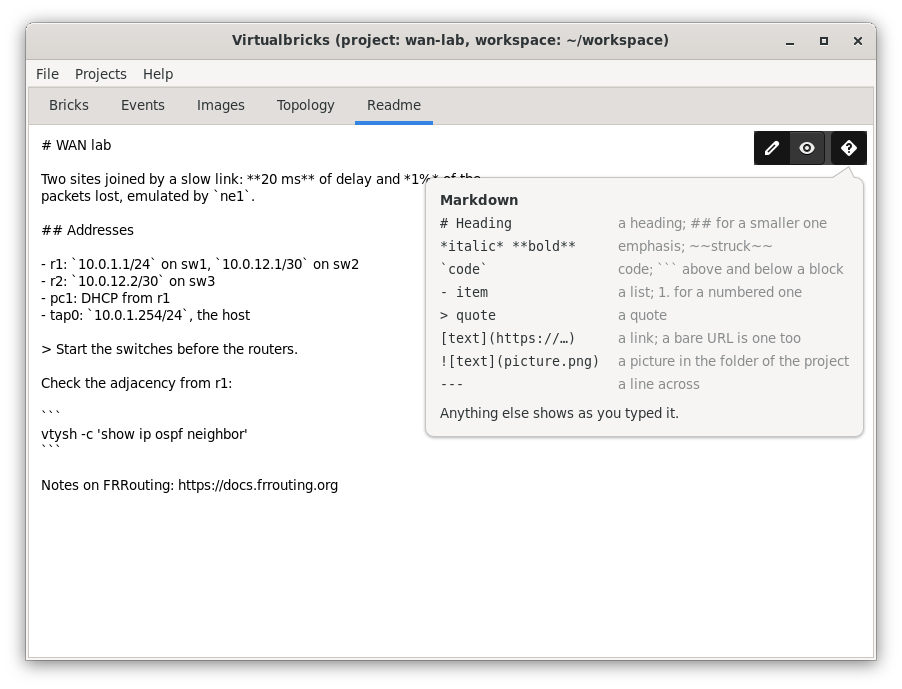
The editor is plain text. The question mark shows the syntax.
The README is rendered in the Projects window too, and the Import dialog shows its first paragraph.
The messages window
File › Logs, where 2.1 had View › Messages, opens the messages of the run: those of Virtualbricks, of its bricks, and what their programs print.
In 2.1 the window was one text view, and each message a line of 2026-09-24T17:47:09+0200 [virtualbricks.bricks.Process#error] …, coloured by its level. The message started some 60 characters in, the path of a module hid which brick it came from, whatever a program wrote on its standard error was an error, and there was no filter. Now it reads like a console:
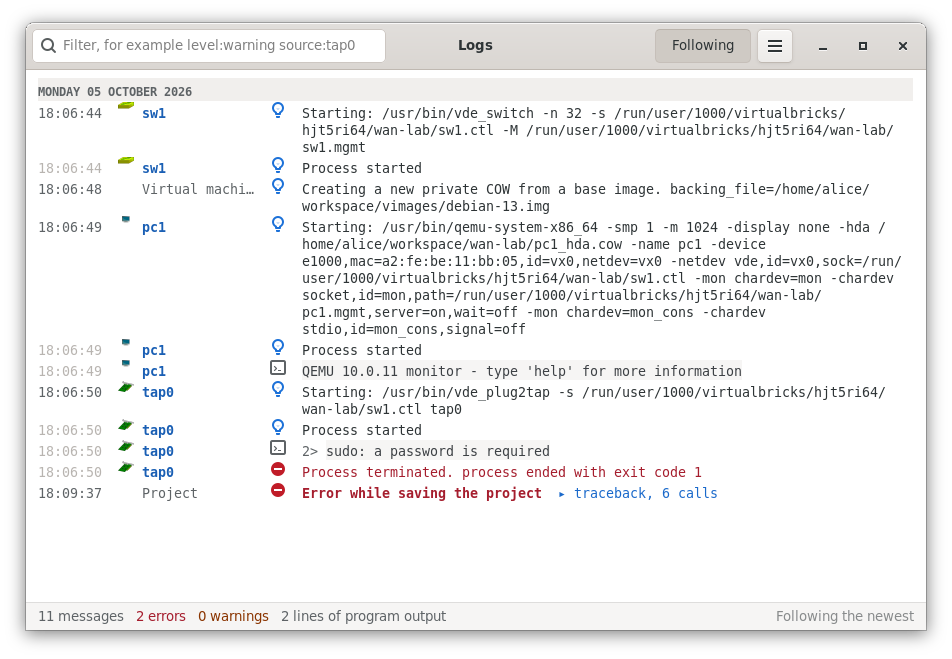
A switch and a virtual machine start, then a tap that sudo didn't run, and a project that couldn't be saved.
- One line, four columns. The time, dimmed when it repeats within the same second, with a line for each day; the source, the name of a brick in blue after its icon, or the part of Virtualbricks in grey, as Project or Main window; a symbol for the level; and the message. The tooltip of the time has the date and the milliseconds, that of the source the type of the brick and its process.
- Folds. The first line of a message shows, and the rest waits behind a toggle: "▸ 2 more lines", or "▸ traceback, 6 calls". Expand all and Collapse all, in the menu, open or close them all.
- Program output, as printed. What a program prints shows on a grey band, with 2> before its standard error, line by line as a terminal shows it: the monitor of QEMU no longer comes as a dozen messages of escape codes, and a line that is only its prompt, (qemu), isn't logged at all. It has a symbol of its own, and the status bar counts its lines apart from the errors.
- A filter. The field in the header bar filters as you type. level:warning keeps the warnings and the errors, source:tap0,r1 the messages of those bricks, source:qemu those of every virtual machine, and any other word the messages that have it. The standard error of a program counts as a warning, so level:warning keeps the complaint of sudo next to the error it explains. Ctrl+F goes to the field, Escape empties it.
- Following. New messages scroll into view while Following is on. Scrolling up turns it off, to read; scrolling back to the end turns it on. The status bar counts the messages, the errors, the warnings and the lines of program output.
- The menu has Expand all, Collapse all, Save…, Report a bug… and Clear. Save and Report a bug write every message, whatever the filter, as before.
The window keeps the latest 2,000 messages, where 2.1 kept them all for as long as it ran, and each window has its own filter and its own folds.
The Settings window
File › Settings had three tabs in 2.1, General, VDE and Qemu, in the words of its Glade file: "X-window terminal command", "Binaries path", "Private COW format". The folders showed "(None)", the terminal was typed, the switch of KSM acted at once, before OK, and OK wrote every row back, also those you hadn't touched.
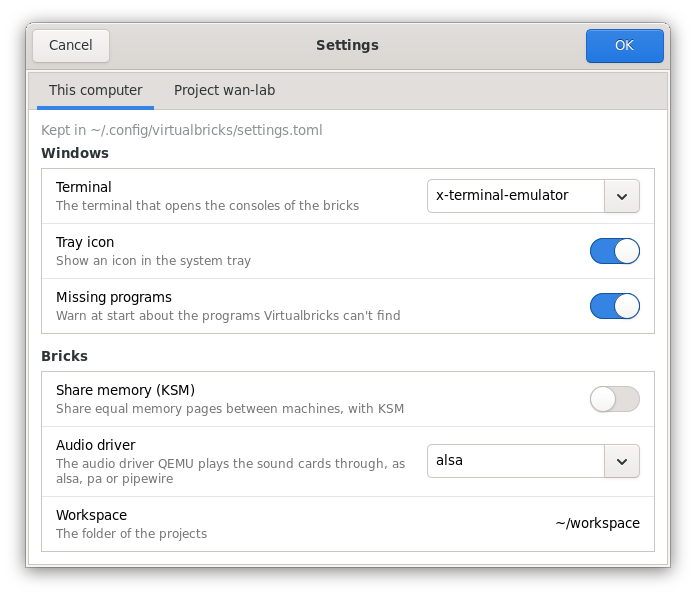
This computer: the settings of the windows and of the bricks, kept in settings.toml.
- A page for each place the settings are kept. This computer has those of settings.toml: the windows, as the terminal and the tray icon, and the bricks, as KSM and the audio driver of QEMU. Project wan-lab has those of the open project's project.toml: the folders of QEMU and VDE and two settings of the links. A line at the top of each page says where they are kept. With no project open, the project page is greyed, and says why.
- Rows that explain themselves. Each setting has a label and a line of help, the same words as the comments of the files.
- Menus of what the computer has. The terminal offers those found that can open a console, the audio driver those that the QEMU of the folder lists, those that play sound first. The default terminal is now x-terminal-emulator, where it was /usr/bin/xterm, which a desktop doesn't always have.
- Folders that say what they hold. Under the folder of QEMU, its version and its programs; under that of VDE, whether the programs of the bricks are there, or which one is missing and the package that has it. A folder that doesn't exist is an error, which marks its page and greys OK, with the reason in its tooltip.
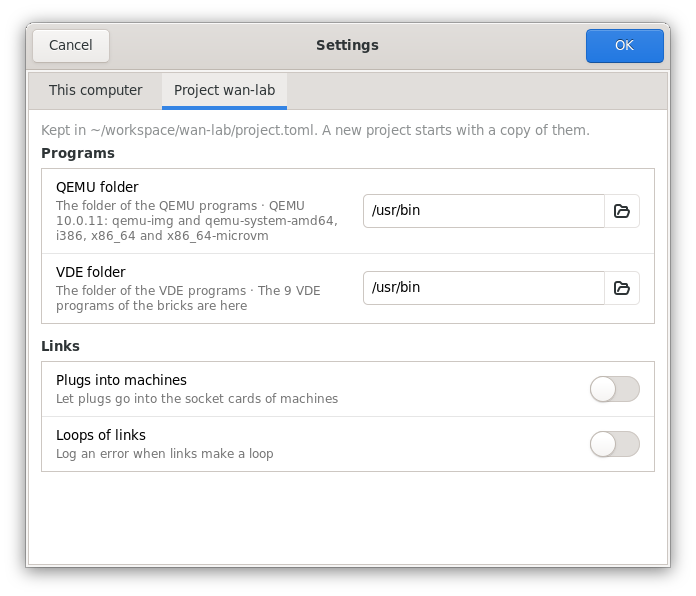
The project's page: the QEMU folder has version 10.0.11, and the VDE folder every program of the bricks.
- Cancel and OK. OK writes only what you changed, so a setting changed meanwhile from the console stays. Cancel changes nothing, KSM included: KSM turns on or off at OK, and if it doesn't, the window stays open on its row, which says why.
- No format for private copies. A new private copy is always qcow2. The menu of 2.1 also offered cow, which the QEMU of today no longer makes, so a project set to it couldn't start a machine with a private disk. A copy already made in qcow is still used.
- KSM at start. The alert speaks of KSM only when the settings ask for it, and says whether this Linux has none or it is still off. 2.1 said "KSM not found in Linux" when KSM was only off, and turned the setting off.
Try it
All of this is in the develop branch: the first post says how to install it. Open one of your labs, look at it in the Topology tab, give it a README with a picture, and tell us what breaks on GitHub.