Import and export
An archive, a .vbp file, holds a project,
to copy it to another computer, send it to a student, or keep it.
The format of the archives is in virtualbricks-vbp(5).
Exporting a project
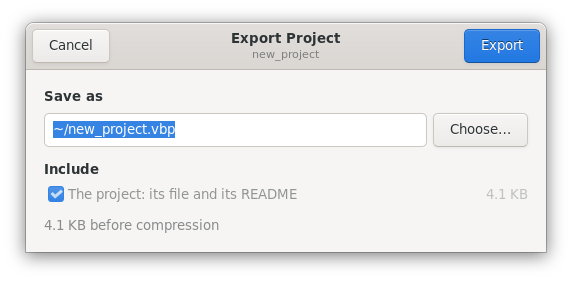
Choose Projects › Export…, or Export… in the Projects window. The window asks where to save the archive and what to put in it, each with its size:
the project, its file and its README, always;
the private copies of the disks of its machines, on at first;
the images, off at first, since they are often large and the other computer may have them;
the other files of the folder of the project.
The export runs in the background, with its progress. You can stop
it, or close the window and let it finish: the Logs window says when it's done. Esc does
as Cancel, which is Stop during the export. With qemu-img installed, the disks are compressed, and
stay disks that QEMU can run.
Importing a project
Choose Projects › Import…, or Import… in the Projects window, then the archive; or drop the archive on the main window or on the Projects window, from the file manager. One page shows what it holds:
- Name
-
The name of the new project: the one in the archive, or the next free one if it is taken. An import never replaces a project.
- Images
-
For each image of the project: Copy it from the archive to the shared images, Use a file… of this computer, or Leave unset: the image stays without its file, until Find the File…, in the Images tab, gives it one. Each has a choice made already, so Import works at once. Above them, a bar while the window looks through the archive, then a line that says which images it has. A choice you make meanwhile stays.
- This computer's paths
-
The folders of QEMU and VDE of the project are replaced with yours when they don't exist here.
- Open the project after the import
-
On at first.
If you stop an import, or it fails, it removes what it wrote. Esc does as Cancel, which is Stop during the import. At the end, the Logs window says what needs your attention, as an image left unset. The archives of Virtualbricks 2.1 import too.
See also
The DTN2hops testbed, from its archive and its disk image, downloaded apart.
Open, make, rename, copy and remove the projects of a workspace.