The README of a project
Each project has a README: what the lab is for, its addresses, its
users and their passwords, how to use it. It is the file README.md of the folder of the project, plain text
that you can write in the Readme tab or in any
editor, and what looks like Markdown in it shows rendered.
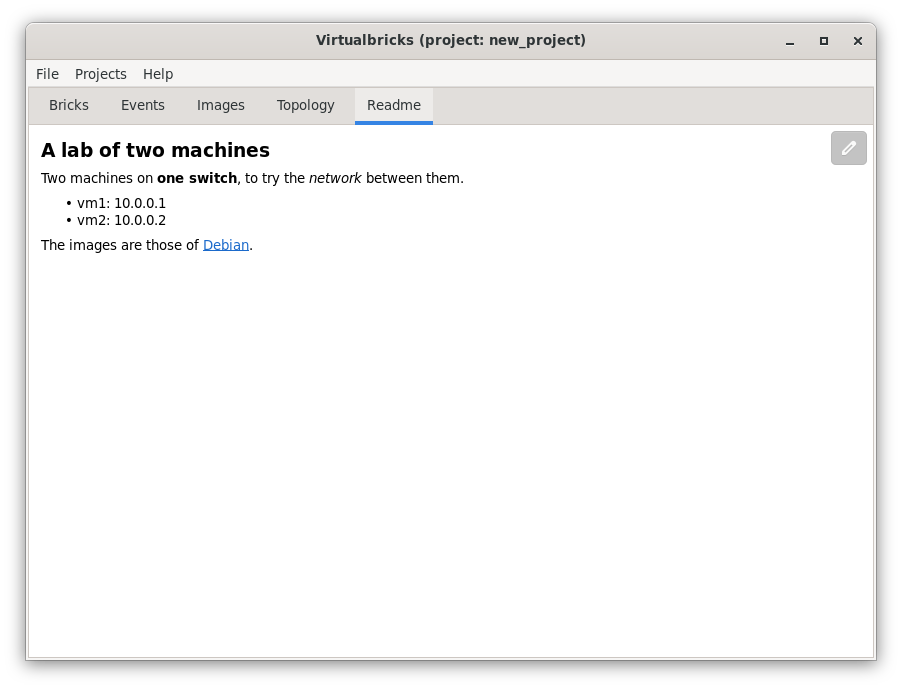
The Readme tab shows it rendered, with its
pictures; the Projects window and the Import window show parts of it,
see Where the README shows. An exported
archive always holds it. A project of an older Virtualbricks has README, which becomes README.md when it opens.
Writing the README
The buttons over the top right corner of the tab are faded until you point at them. Over the README rendered, the pencil, Edit, opens its text. While you write, the eye, Preview, goes back to the README rendered, and the question mark, Syntax, shows what the text can hold. A project without a README says so, and the pencil writes one.
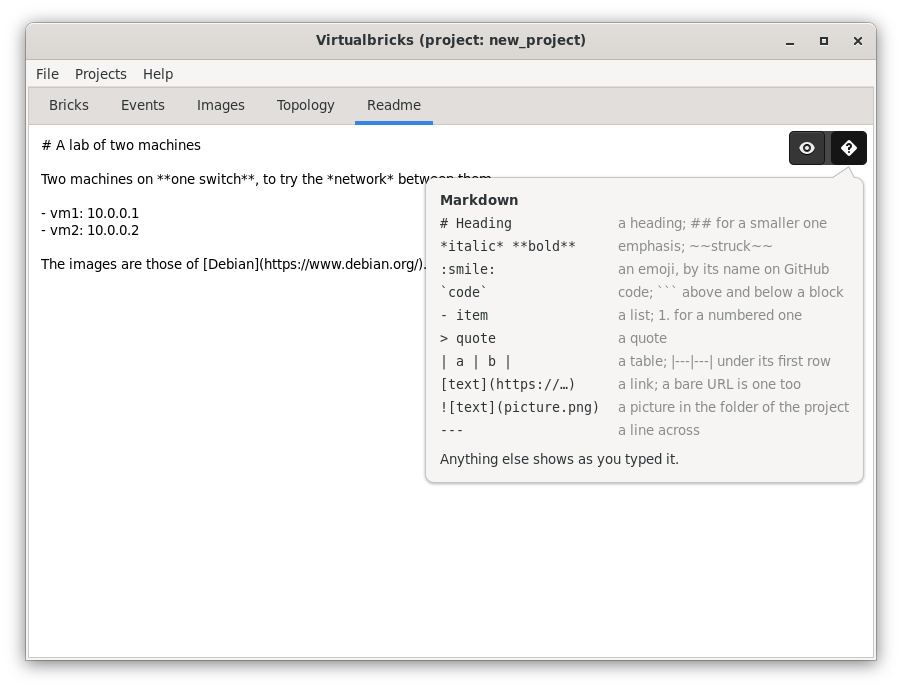
The editor is plain text, without colours. The README is saved at most 30 seconds after a change, and when you leave the tab, when the project is saved, and when you quit. The tab reads the file again each time it shows: a README changed in another editor shows when you come back to the tab.
The syntax
The syntax is CommonMark, the Markdown that GitHub, GitLab and most editors share, with the tables of GitHub, but for what What it doesn't do lists. The file stays as you wrote it: the marks show rendered only where the README is read.
Blocks
# Title-
A heading, bold:
#and a space before its text,##for a smaller one, and###to######for the smallest, all of one size. A line of===under a line of text makes it a heading of the largest size, and a line of---one of the next. - A paragraph
-
Lines of text, with an empty line before the next block. A new line in a paragraph stays a new line, where most Markdown programs join the lines into one: a README written as plain text keeps its lines.
- item-
A list, with a bullet before each item;
*and+too. An item can hold paragraphs, code and other lists: indent them under its text, by two spaces after-. 1. item-
A numbered list,
1)too. It counts from its first number, whatever the numbers after it:3., then3.again, is 3 and 4. Indent by three spaces after1.. > quote-
A quote, in fainter text, indented.
>>is a quote in a quote, and a quote can hold lists and code. | a | b |-
A row of a table, a line with a
|before each cell and after the last; see Tables. ```-
A line of three backquotes above a block of code, and another below it; or three tildes,
~~~. The block shows in a monospace font, on a tinted background, with its spaces, and nothing in it is read as a mark. A word after the first backquotes, assh, is left out. A block without its closing line runs to the end of the README. ----
A line across, alone on its line, with an empty line above it;
***and___too.
Within a line
*emphasis*,_emphasis_-
Italics. A
_inside a word, as invm1_hda, stays a_. **strong**,__strong__-
Bold;
***both***is bold and italic. ~~struck~~-
Struck through, with two tildes on each side.
:smile:-
An emoji, by the name that GitHub gives it:
:smile:is 😄,:+1:👍,:warning:⚠️,:penguin:🐧. A name stuck to a letter, a digit or a:stays text, so that:ab:and:cd:in the address52:54:00:ab:cd:efstay as they are; but names in a row,:tada::rocket:, are emoji, all of them or none.\:smile:and`:smile:`stay text too. The emoji show in colour with a font of colour emoji, as Noto Color Emoji; without one, as boxes. `code`-
A monospace font, on a tinted background, with no mark read inside. Two backquotes around a code that holds one:
`` a ` b ``. [text](https://example.org)-
A link; see Links.
-
A picture of the folder of the project; see Pictures.
\*-
A backslash shows the mark after it as it is, as
\*,\_,\#or\`. ©-
An entity of HTML is its character:
©is ©,&is &, a space that never breaks.
Tables
A table is a line for each row, with its cells between
|. Under the first row, the header, a line with a
--- for each column makes the lines a table:
| Machine | Address    | Users |
|---------|-----------:|:-----:|
| vm1     | 10.0.0.1   | 2     |
| router  | 10.0.0.254 | 0     |
The header is bold, with a line under it, and the columns line up
whatever the spaces in the text. A : aligns the cells of a
column: ---: to the right, :---: in the
middle, and :--- or --- to the left. A row
with fewer cells than the header ends with empty ones, and the cells of
a row past those of the header are left out.
A cell holds emphasis, code and links, but a picture shows as its
text, and a | in a cell is written \|. A row
doesn't wrap: in the Readme tab, a table wider
than the tab goes past its right edge, and the tab scrolls sideways to
it; the Projects window cuts it at its edge. Copied, a row keeps a tab
between its cells.
Links
A click on a link opens it: an http or
https link in your browser, and a mailto link
in your mail client. The pointer turns into a hand over a link. Other
links show, but don't open, as a link to a file of the project,
[notes](notes.md), or an ftp link; and
file: and javascript: links aren't links at
all, but text as you typed it.
[text](https://example.org)-
The text is the link, and it can hold emphasis and code. A URL with spaces goes between
<and>, or with%20for each space. <https://example.org>,<alice@example.org>-
The URL is the link; an e-mail address is a
mailtolink. https://example.org-
A URL that starts with
http://orhttps://is a link as it is, outside code. It ends before the punctuation that ends a sentence, a., a,or a): write a URL that ends with)between<and>. Awww.example.orgwithout itshttps://, or an e-mail address alone, stays text.
Pictures
A picture is a file of the folder of the project, or of a folder in
it, and the README names it by its path from there, as topology.png or pictures/router.jpg; %20 in the path is
a space. The text in brackets says what it shows. The Readme tab shows
the text, in italics, until the picture comes; then the picture as wide
as it is, or narrower to fit, and the first frame of an animation. Any
kind of picture that GTK reads will do: PNG, JPEG, GIF, SVG and
others.
A picture that can't show stays its text, or its path when the brackets are empty:
a file outside the folder of the project: by a path from
/, by..out of it, or through a link out of it;a picture on the web: Virtualbricks never fetches one;
a file larger than 10 MB, or a picture of more than 32 million pixels;
a file that isn't a picture, or that isn't there.
To show the picture of the lab:
In the Topology tab, choose Export as Image… in the menu of the bar, and save the picture in the folder of the project, as the chooser suggests:
new_project.png.In the README, write
.
The pictures go into the exported archives with the other files of the folder of the project, so the README shows them on the other computer too; see Exporting a project.
What it doesn't do
These show as you typed them, marks and all:
HTML, as
<b>or<br>;a link by reference,
[text][name], with[name]: https://…on a line of its own, and a footnote,[^1];a task,
- [ ] todo, which shows[ ]after the bullet.
Also:
A line indented by four spaces is a line of a paragraph, without its spaces, not code: put code between lines of backquotes.
A block of code has no colours, whatever its language.
The title of a link or of a picture,
[text](https://example.org "Title"), is left out.A picture in a table shows as its text.
The headings below
##are all of one size.
Where the README shows
- The Readme tab
-
The whole README, with its pictures. Its text can be selected and copied.
- The Projects window
-
The row of each project shows the first line of its README that has text, without its marks: its title, often. Beside the list, the README of the selected project shows whole, each picture as its text.
- The Import window
-
The first paragraph of the README of the archive, the first that isn't a heading, in four lines at most, with
…when it goes on. project list-
The console lists each project with the first line of its README, as it is typed, without the
#of a title; see The console and scripts.
In the windows of another computer (see Another computer), the README is that of the lab machine, and so are its pictures. A README of 64 KiB or more can't go through the connection: write it on the lab machine.
See also
Open, make, rename, copy and remove the projects of a workspace.
See how the bricks connect, arrange them, and export the picture.